Learn how to customize your booking page in lemcal.
By the end of this tutorial, you'll know how to personalize your booking page from Settings, update its visuals, add widgets, choose a layout, and share it with your booking page link.
Your booking page is often the first impression someone gets before scheduling time with you. Customizing it helps you make the page feel more on-brand, more informative, and easier for visitors to engage with.
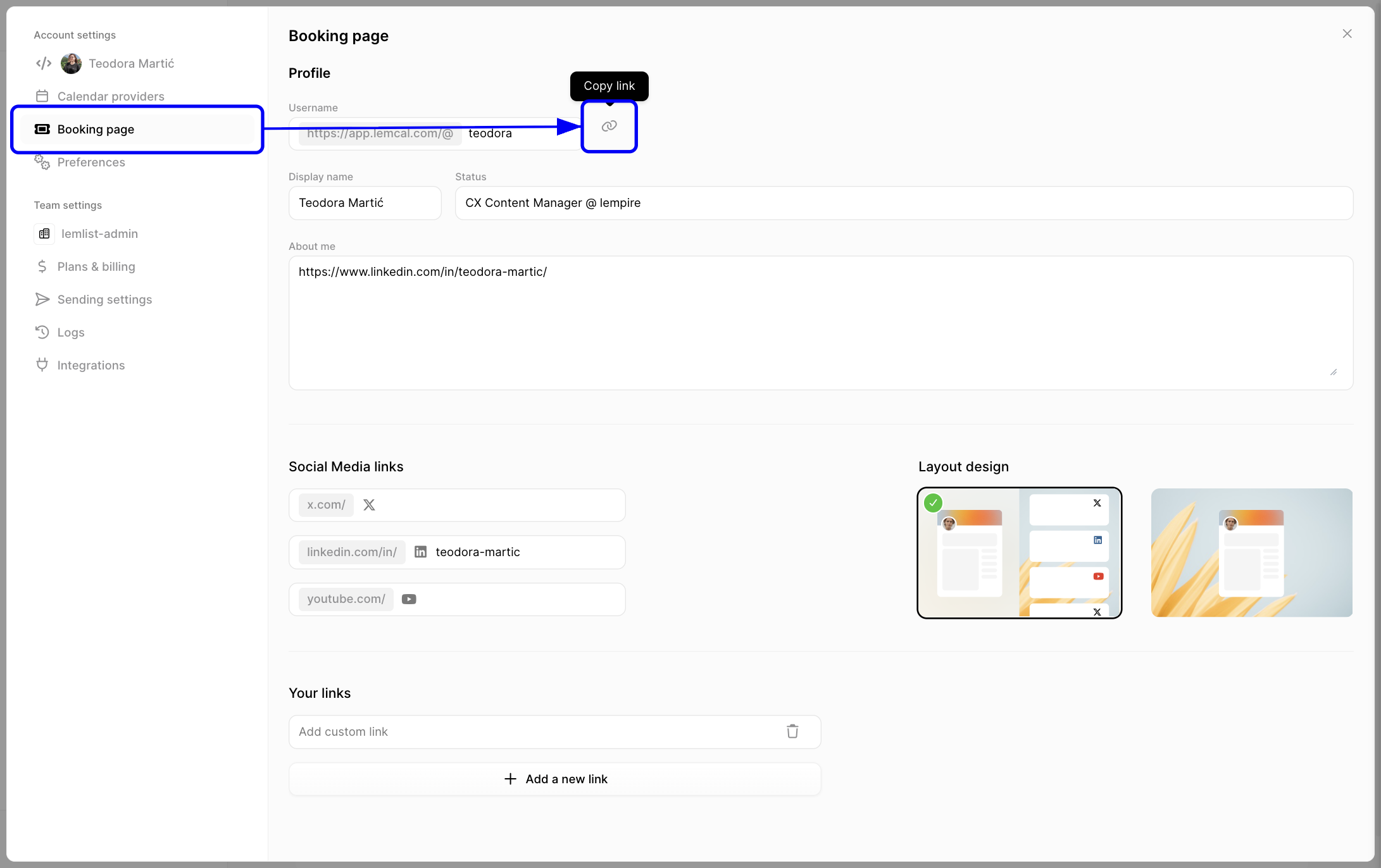
1. Click your profile avatar in the bottom-left corner, then select Settings. This is the new place where booking page customization lives.

2. In Account settings, open Booking page. From there, you can edit your page details and use the copy link shortcut next to your public URL.
1. Open your booking page preview to see your current design and content. From this view, you can edit your banner, profile image, widgets, layout, background, and quickly copy your booking page link.
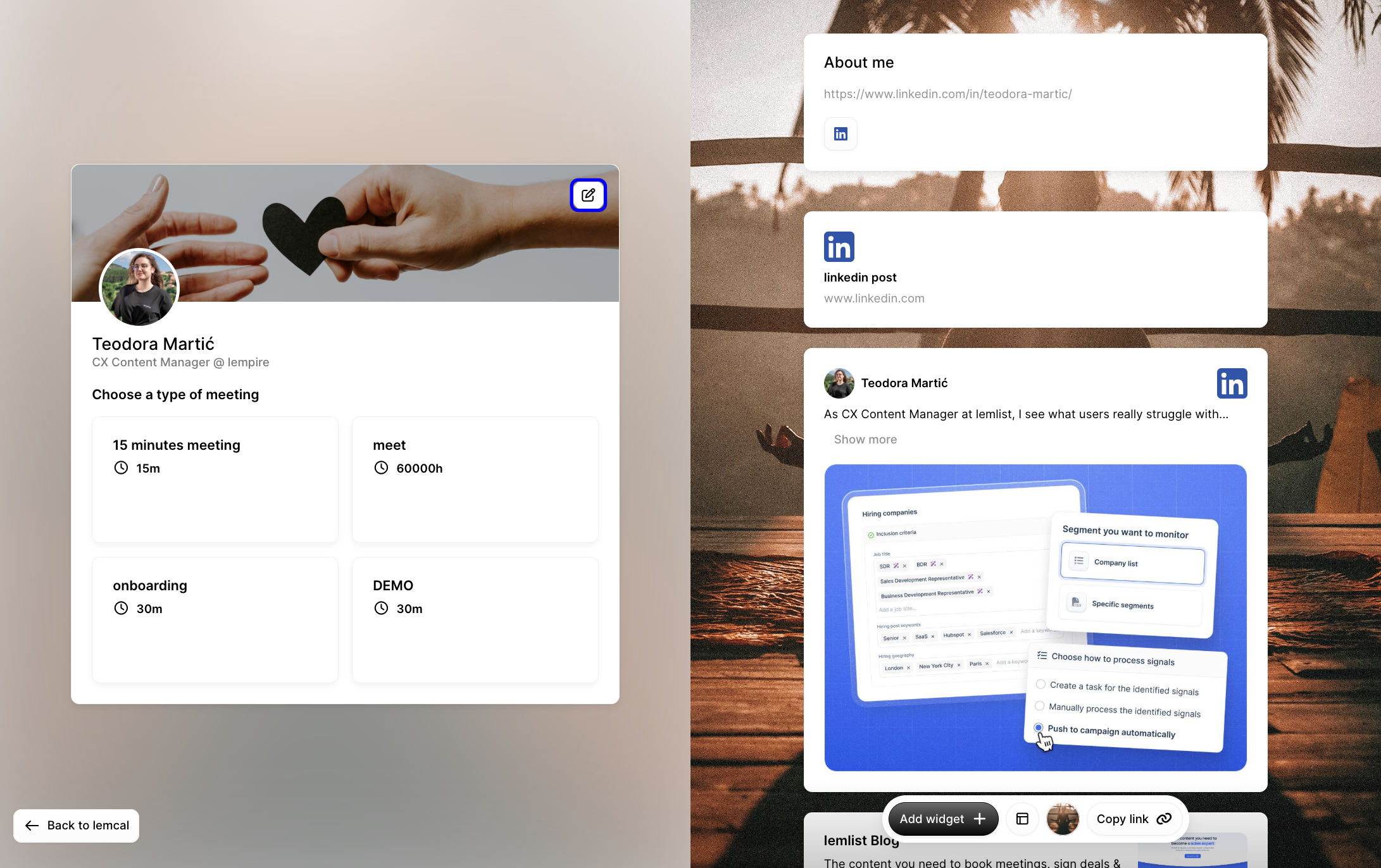
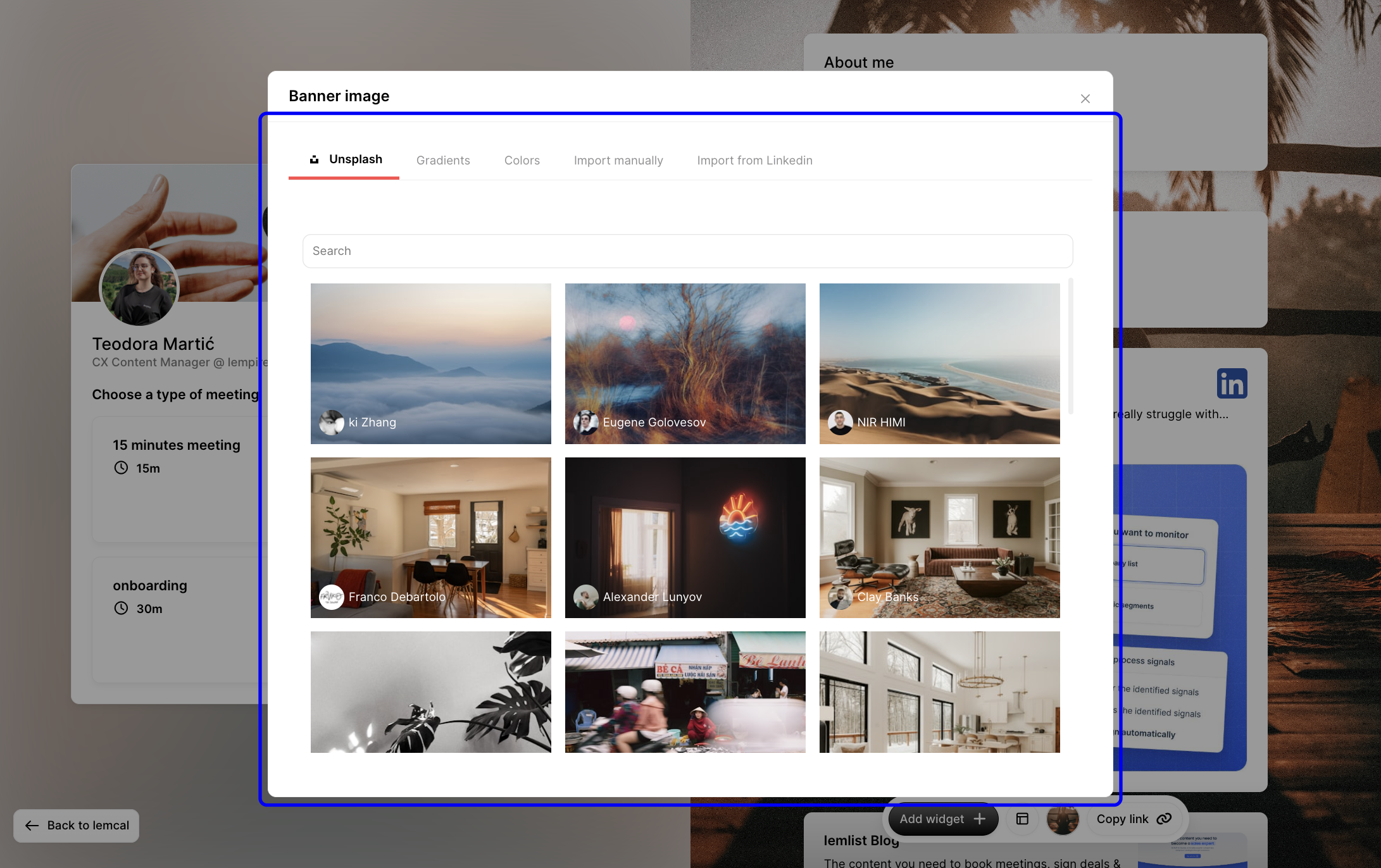
1. To change your banner image, click the edit icon on the banner. Then choose an image source such as Unsplash, Gradients, Colors, manual import, or LinkedIn import. Use this to make the top of your booking page feel more personal or more on-brand.
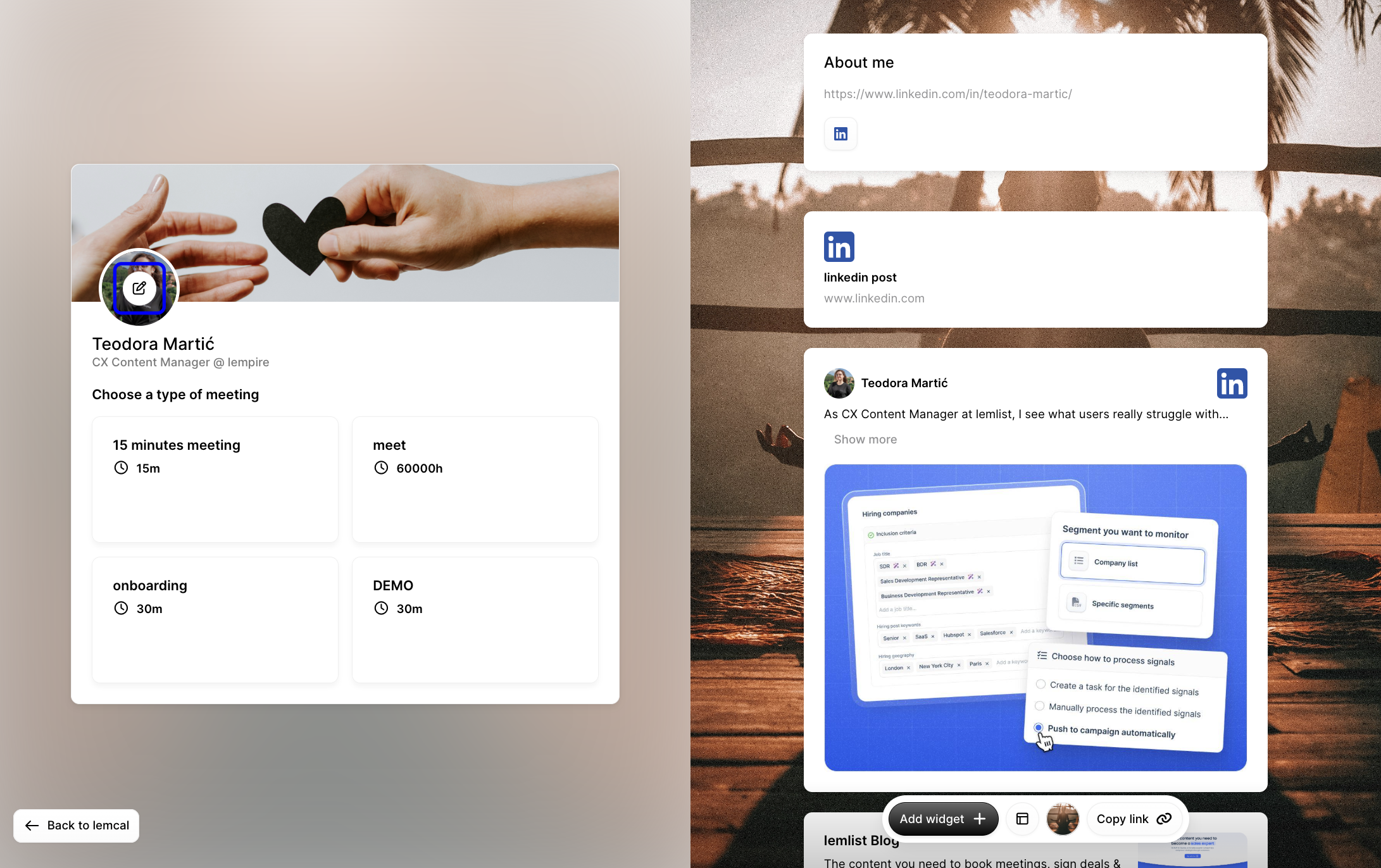
2. To update your profile picture, click the edit icon on your avatar. This helps visitors quickly recognize who they are booking time with.
3. To change the page background, click the background control in the bottom toolbar, then choose a background image or style. This lets you match the page atmosphere to your personal brand or company style.
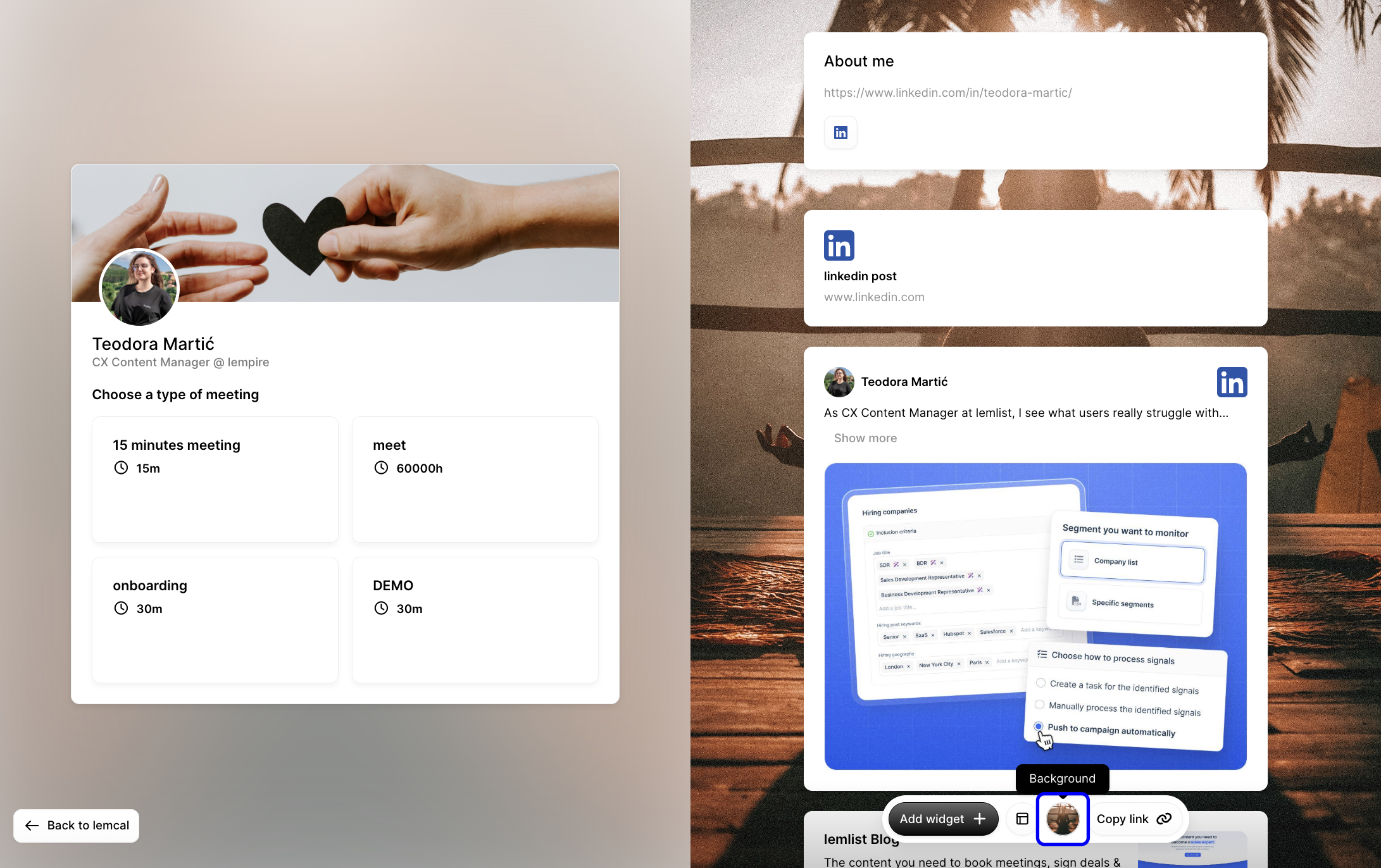
Click Add widget to insert extra content blocks into your booking page, such as social links, embeds, quotes, or custom links. Widgets help visitors learn more about you before booking.

Click the layout control in the bottom toolbar, then select the layout that best fits your content. Use layout options to decide how your meeting types and widgets are displayed together on the page.
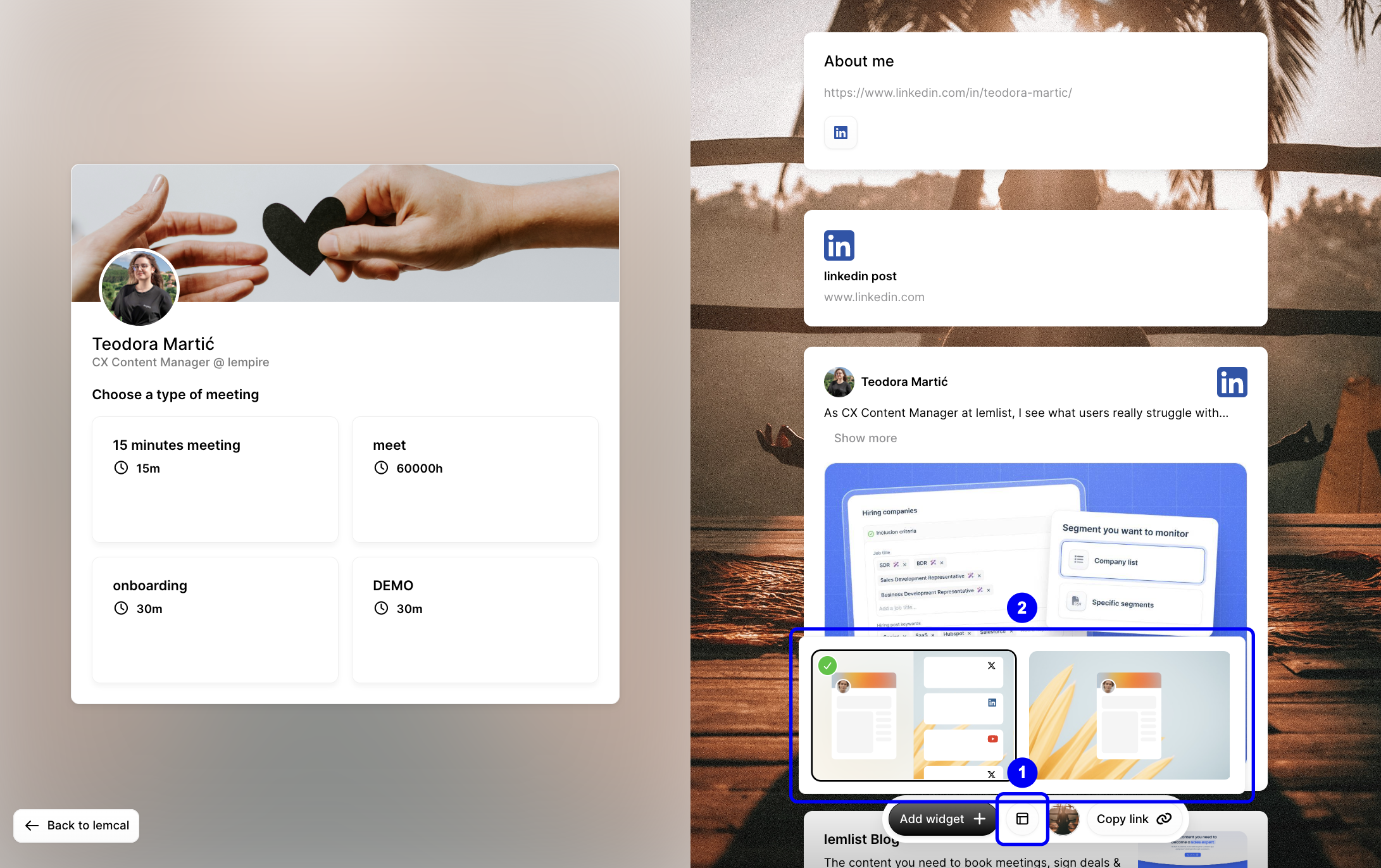
When you're done customizing, click Copy link from the bottom toolbar to quickly share your updated booking page.

A strong booking page usually combines a few simple improvements: a professional banner, an updated profile picture, one or two useful widgets, and a layout that keeps your meeting types easy to scan. For example, you might add a LinkedIn widget, choose a branded background, and then copy the page link to include it in your email signature or outbound messages.


