learn how to import your existing Calendly schedules and events
By the end of this tutorial, you’ll know how to import your Calendly availabilities and meeting types into lemcal so you can keep your scheduling setup without rebuilding it from scratch.
If you already use Calendly, importing your existing configuration into lemcal saves time and helps you get started faster. Instead of manually recreating your scheduling setup, you can bring over your availabilities and meeting types in just a few clicks.
You should already have access to your Calendly account and know which availabilities or meeting types you want to import.
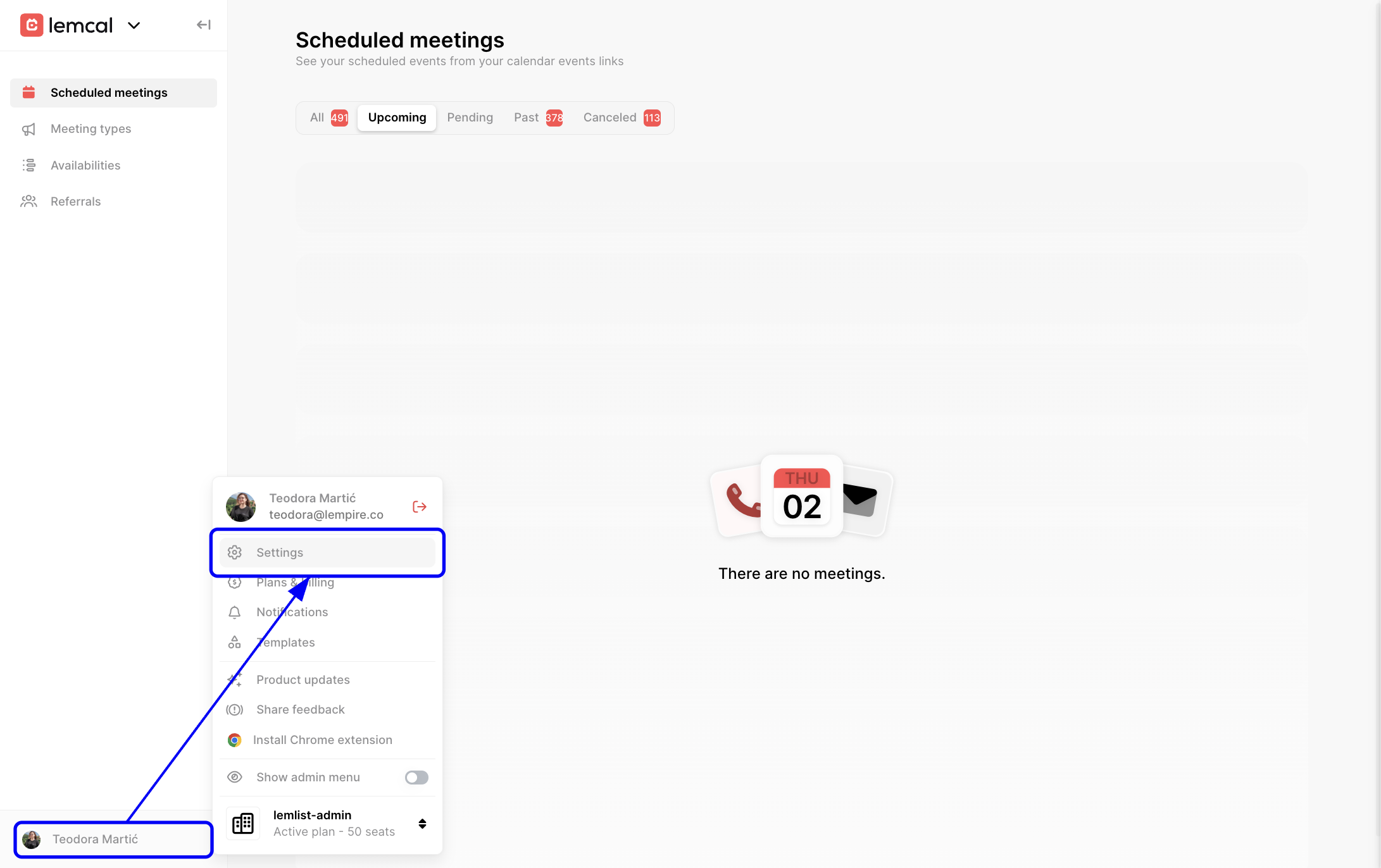
1 - Open the profile menu in the bottom-left corner of lemcal, then click Settings. This takes you to your account settings, where import options are now managed.
2 - In the settings panel, click Preferences, then scroll to the Import configuration section and click the Calendly button. This is where you start importing your Calendly setup into lemcal.

If you’re already logged in to Calendly in your browser, lemcal will automatically connect to it.
If you’re not logged in, a pop-up will appear asking you to sign in and confirm your Calendly credentials.
3 - After the connection is complete, select the availabilities and meeting types you want to import. This lets you bring in only the configurations you actually need in lemcal.
4 - Click Import configuration to finalize the import.
For example, if you already created your working hours and several meeting types in Calendly, you can import them into lemcal instead of setting them up manually again. This is especially useful if you want to switch tools quickly without interrupting your booking flow.
Issue: The Calendly account doesn’t connect automatically
Root cause: You may not be logged in to Calendly in your browser.
Fix: Log in to Calendly when prompted, then try the import again.
Issue: You don’t see the availability or meeting type you expected
Root cause: That item may not exist in your connected Calendly account, or it may not be selected in the import modal.
Fix: Double-check the connected Calendly account and make sure the correct items are selected before importing.
Issue: The import button stays unavailable
Root cause: No availability or meeting type has been selected yet.
Fix: Select at least one availability or meeting type, then click Import configuration.


