Everything you need to know about the Zoom integration
By the end of this tutorial, you’ll know how to connect or disconnect Zoom in lemcal from the Settings > Integrations page, set Zoom as your default meeting location, and choose it for specific meeting types when you need different booking experiences.
Using Zoom as a meeting location helps you automatically generate meeting links and keep your scheduling workflow consistent. Connecting it from the Integrations page gives you a central place to manage the integration, while setting it at both the account level and the meeting type level gives you more control over how bookings are handled.
This phase manages the Zoom integration itself. Before you can use Zoom as a meeting location, it needs to be connected in lemcal.
1 - Open your settings: From your lemcal workspace, click your profile in the bottom-left corner, then select Settings.
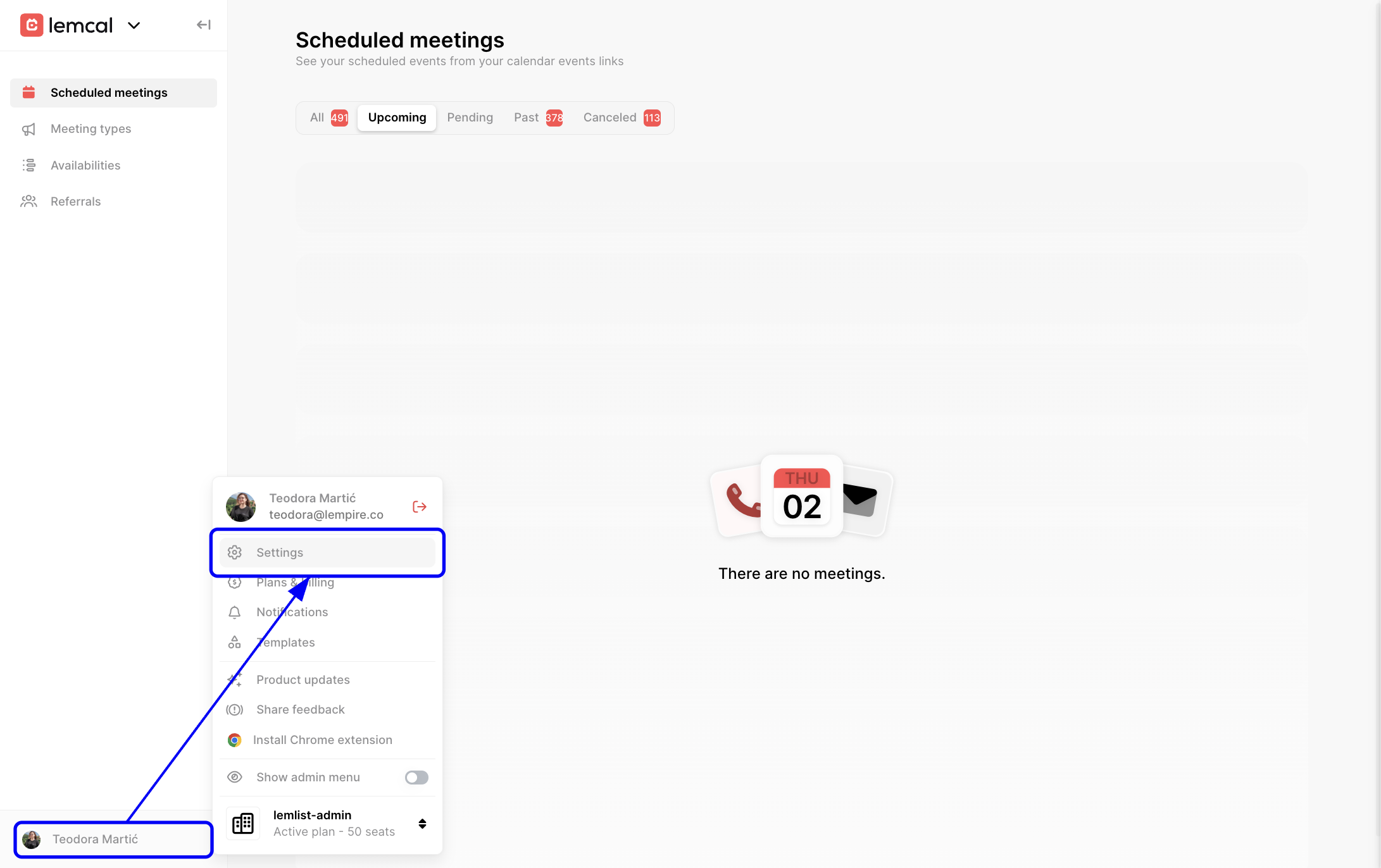
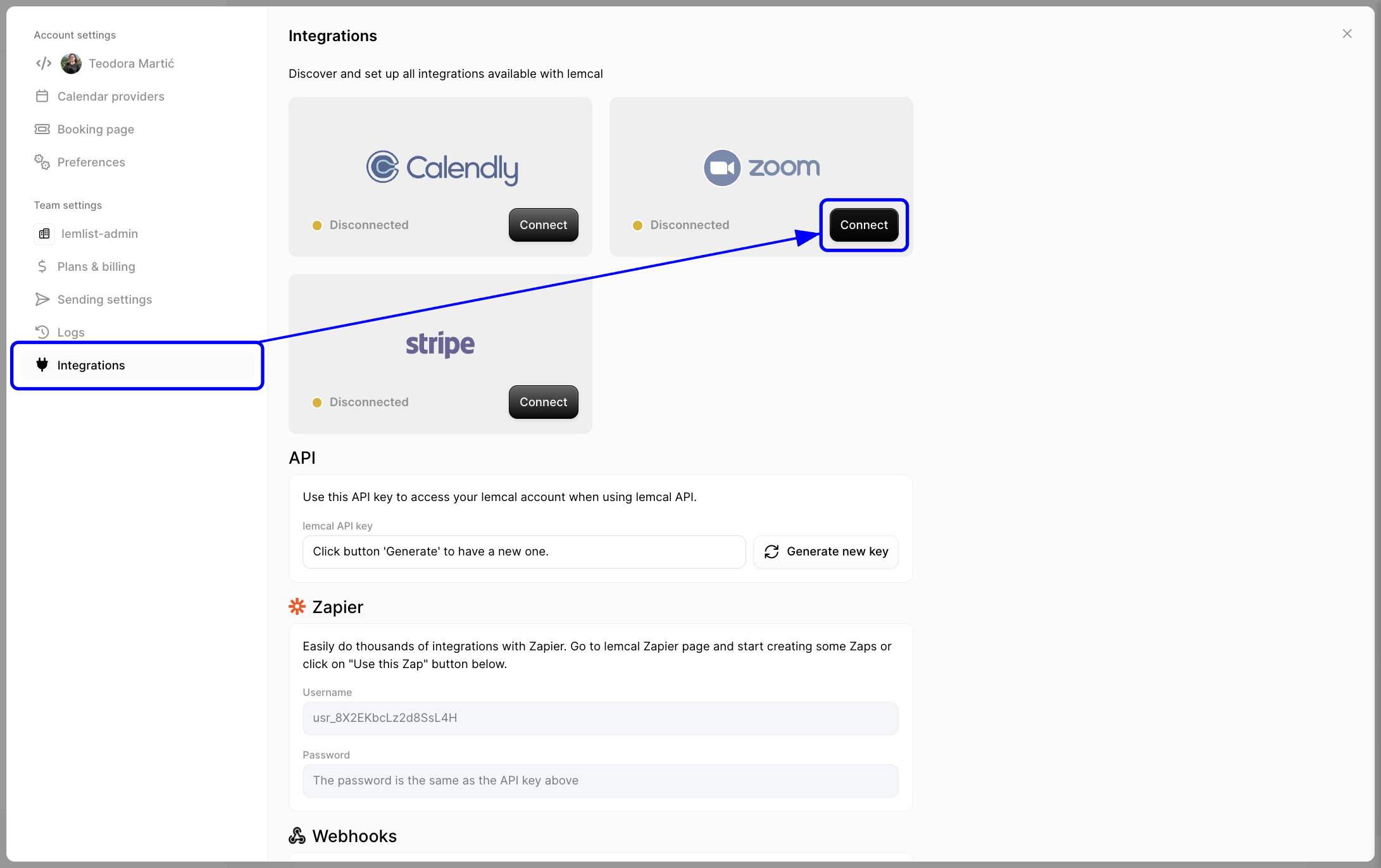
2 - Connect Zoom: In Settings, open Integrations and click Connect on the Zoom card. Then follow the prompts to authorize your Zoom account.
3 - Disconnect Zoom: If Zoom is already connected and you want to remove it from lemcal, go to Settings > Integrations and click Disconnect on the Zoom card.
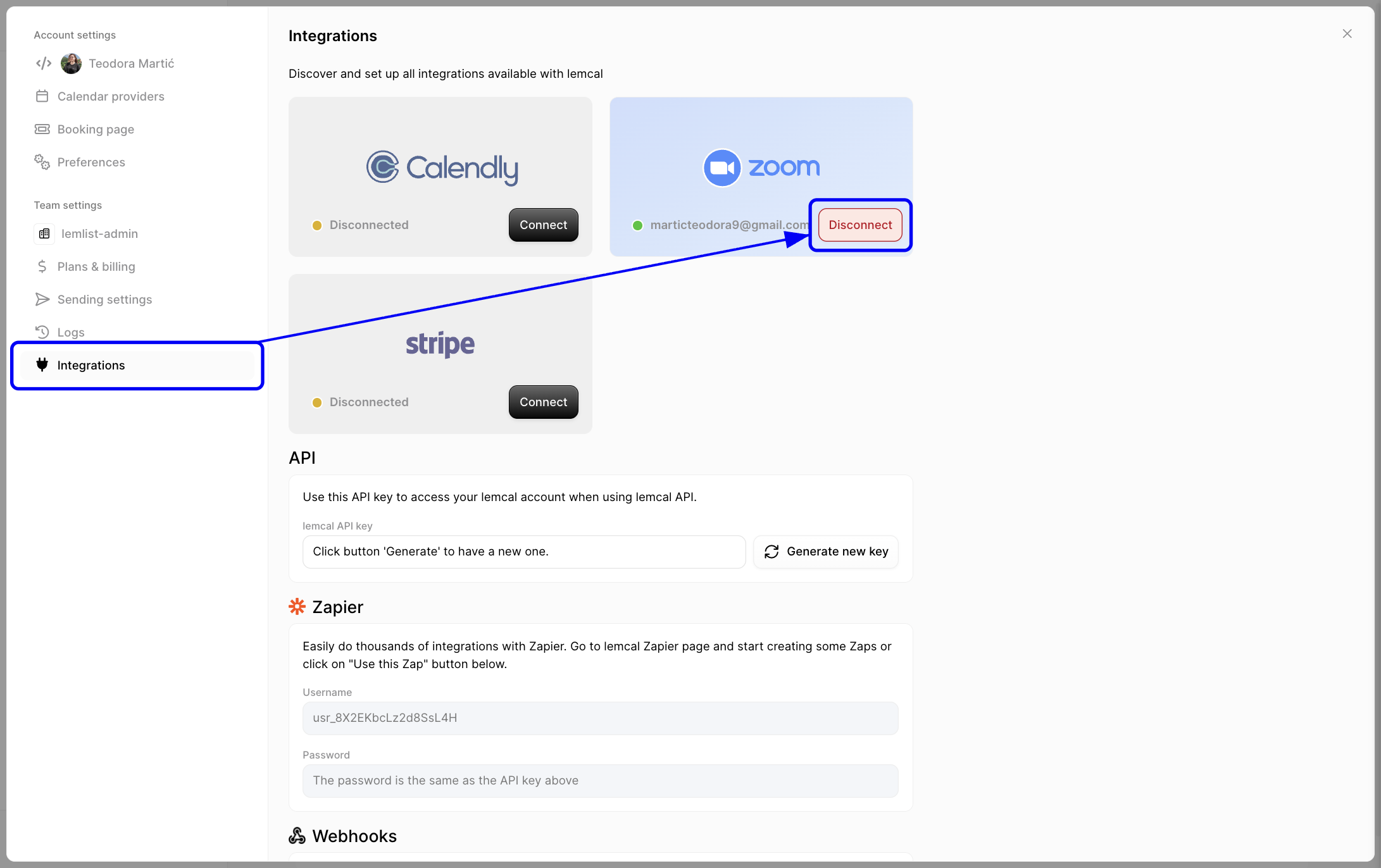
Once Zoom is connected, it becomes available as a selectable meeting location in your account and meeting type settings.
This phase sets your account-wide default. It’s useful if you want new meetings to use Zoom automatically unless you choose a different location later.
1 - Set Zoom as your default meeting location: In Preferences, go to the Meeting location section and select Zoom. This makes Zoom your default location for future scheduling.
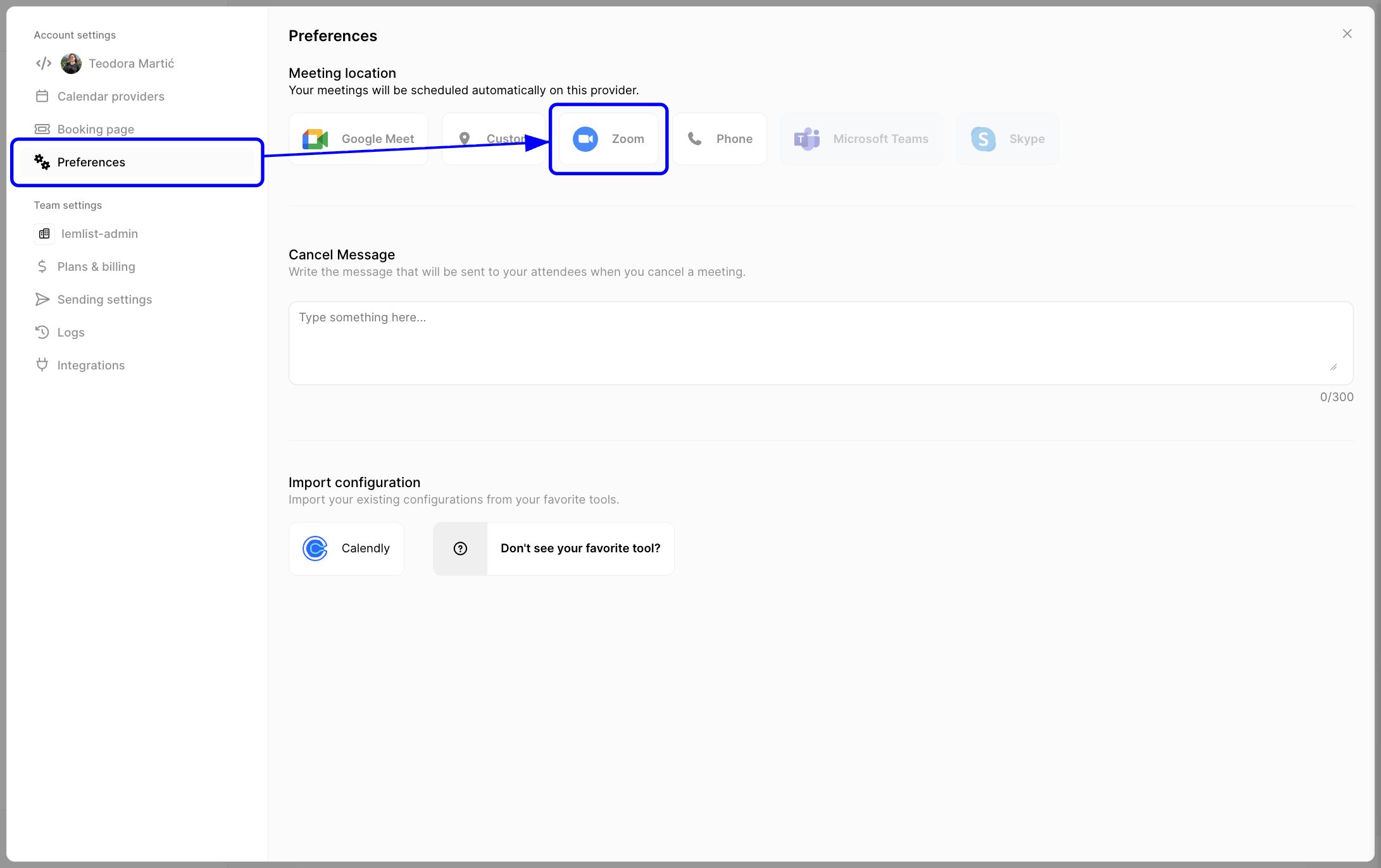
Once this is configured, Zoom becomes your default meeting location across lemcal unless a specific meeting type is set differently.
This phase is helpful when you want one meeting type to use Zoom without changing your account-wide default. It gives you more flexibility for different booking scenarios.
1 - Open the meeting type you want to edit: In the left sidebar, click Meeting types, then select the meeting type you want to update. This opens that meeting type’s settings so you can customize how bookings are handled.
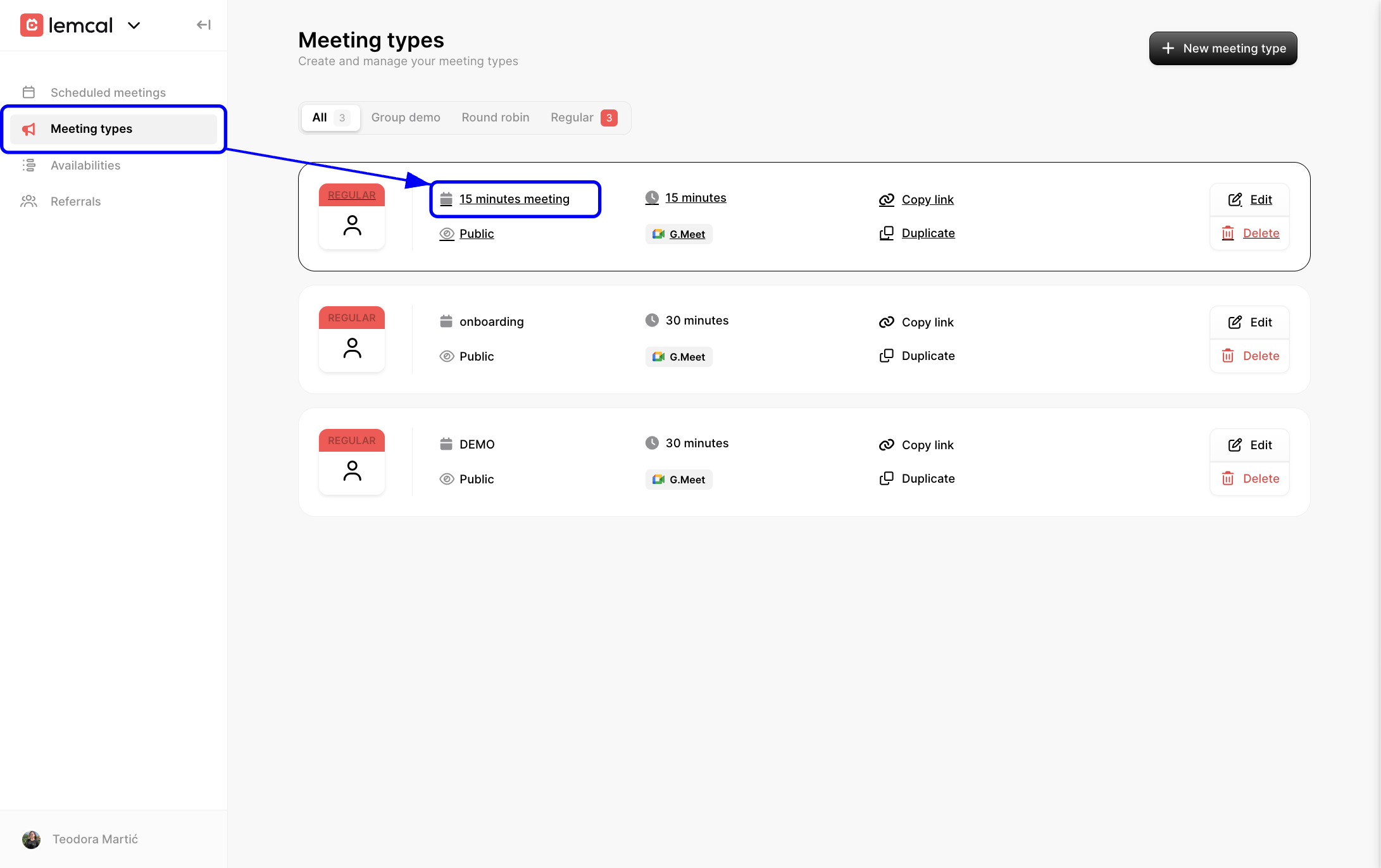
2 - Set Zoom as the event location for that meeting type: In the meeting type editor, stay on General, go to the Event location section, open the location dropdown, and select Zoom. This applies Zoom only to that meeting type, which is useful if different meeting types need different locations.

After saving, bookings made through that meeting type will use Zoom as the event location.
For example, you might keep Google Meet as your default meeting location for most internal or quick calls, but switch a 15-minute intro meeting to Zoom because your external clients prefer it. This setup lets you tailor the booking experience without changing the rest of your workspace.
Issue: Zoom does not appear as a selectable location
Issue: Zoom is set as default, but a meeting type uses another location
Issue: Booked meetings are not creating Zoom links as expected


