Everything you need to know about the Scheduled Meetings section
By the end of this tutorial, you’ll know how to review your upcoming, past, and canceled meetings, open a past meeting to see its full details, and use the meeting record to check attendee information, booking question answers, and the meeting link.
Your Scheduled meetings page is more than a list of upcoming calls. It also helps you look back at completed meetings, review what a prospect submitted when booking, and quickly access canceled meetings when you need context or follow-up.
1. Go to Scheduled meetings. In the left sidebar, click Scheduled meetings. At the top of the page, you can use the meeting tabs to switch between All, Upcoming, Pending, Past, and Canceled. This is the main place to review meetings based on their status.
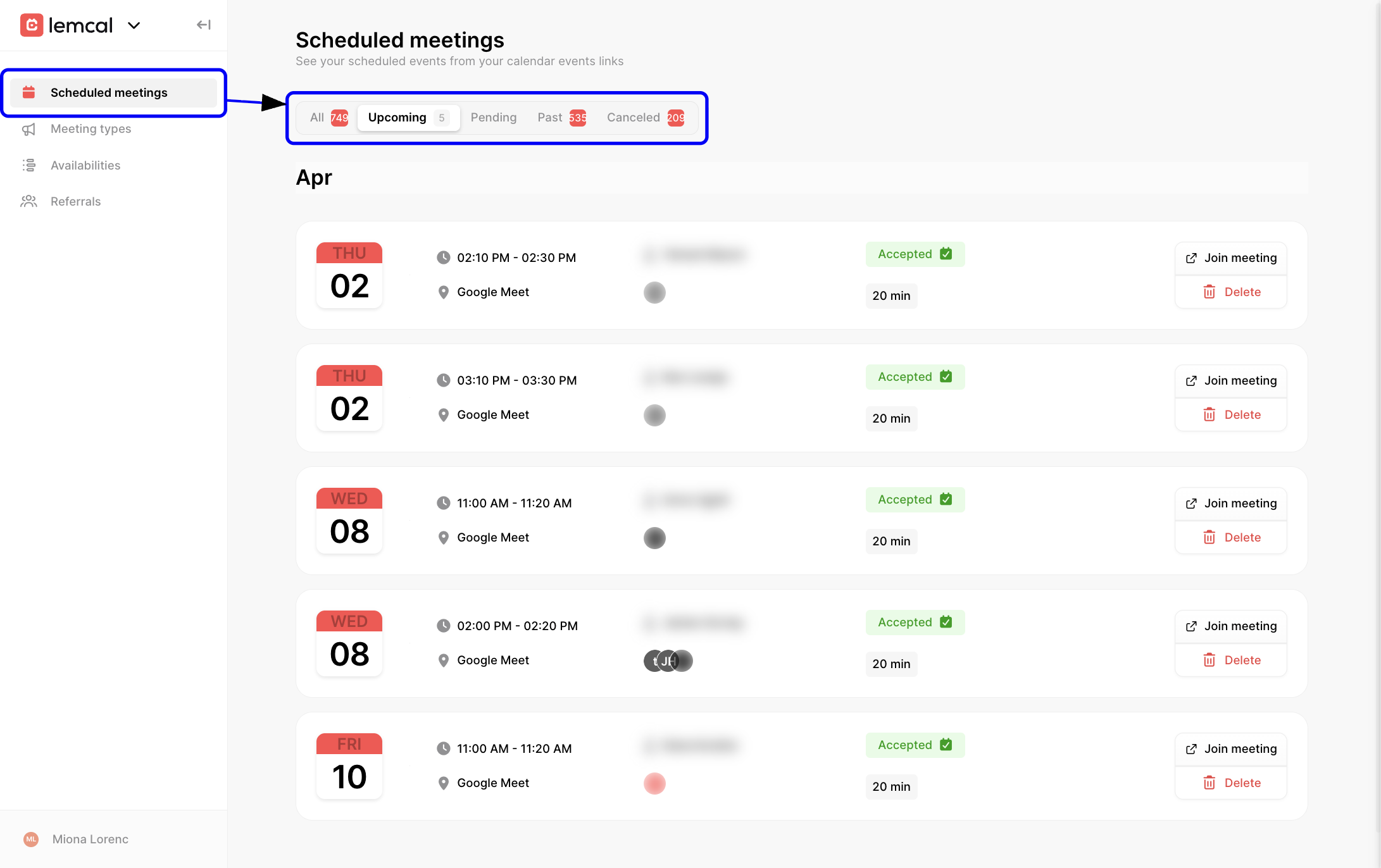
The list below the tabs shows the meetings that match the tab you selected, grouped by month so they’re easier to scan.

1. Open a meeting from the list. Click any meeting card in the list to open its full record. This is useful when you want more context than the summary shown in the main list.

2. Check the attendee information. In the meeting record, the left panel displays the attendee’s details such as name, job title, company, email, and LinkedIn profile when available. This helps you prepare before follow-up or confirm who attended.

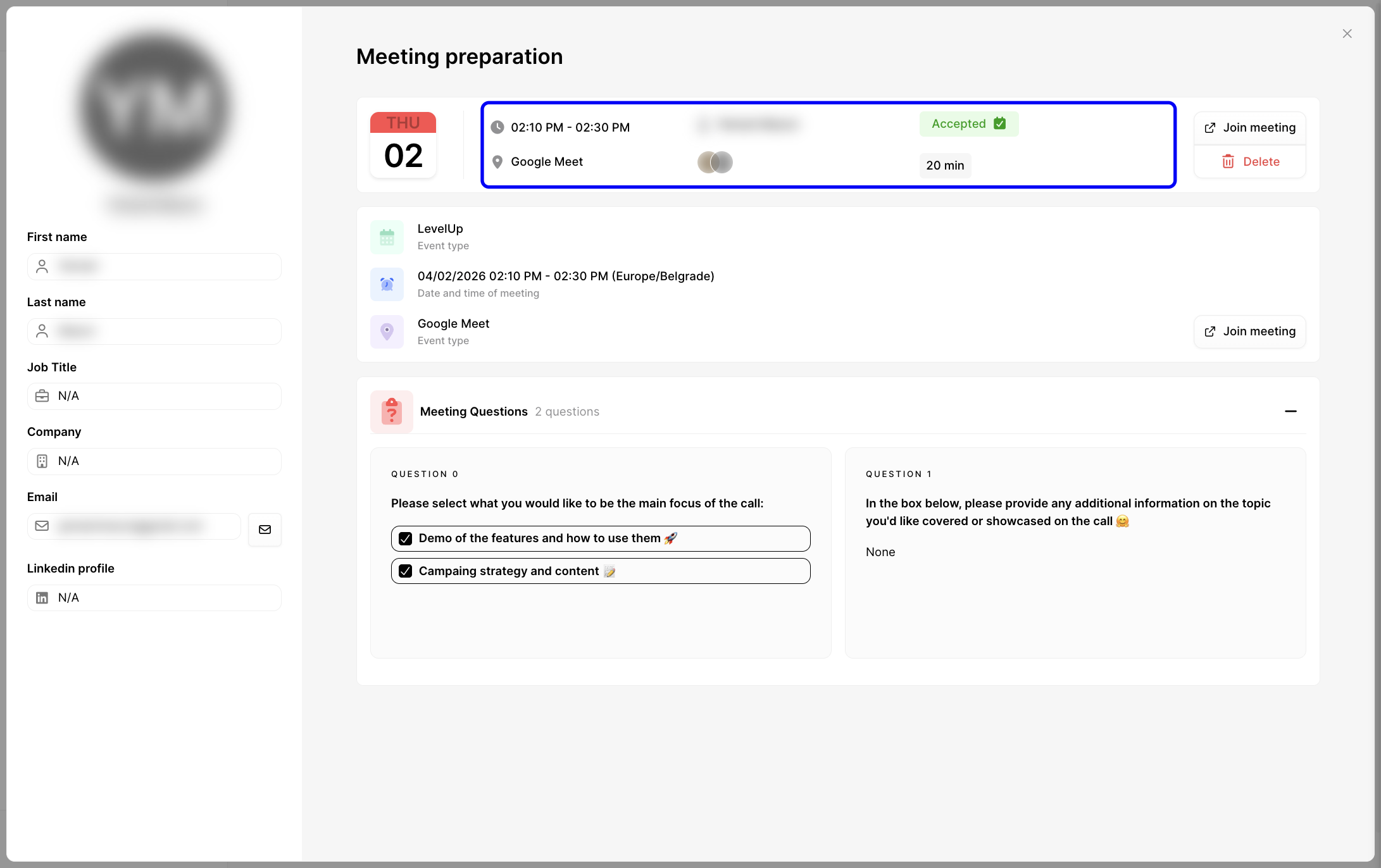
3. Review the meeting summary. At the top of the meeting record, you can see the meeting date, time, meeting location, status, duration, and attendees. Use this section to confirm the core details of the booked event.
4. View the event details and meeting link. The center details section shows the event type, the exact date and time of the meeting, and the meeting platform. If the meeting has an online link, you can also use Join meeting from this area.

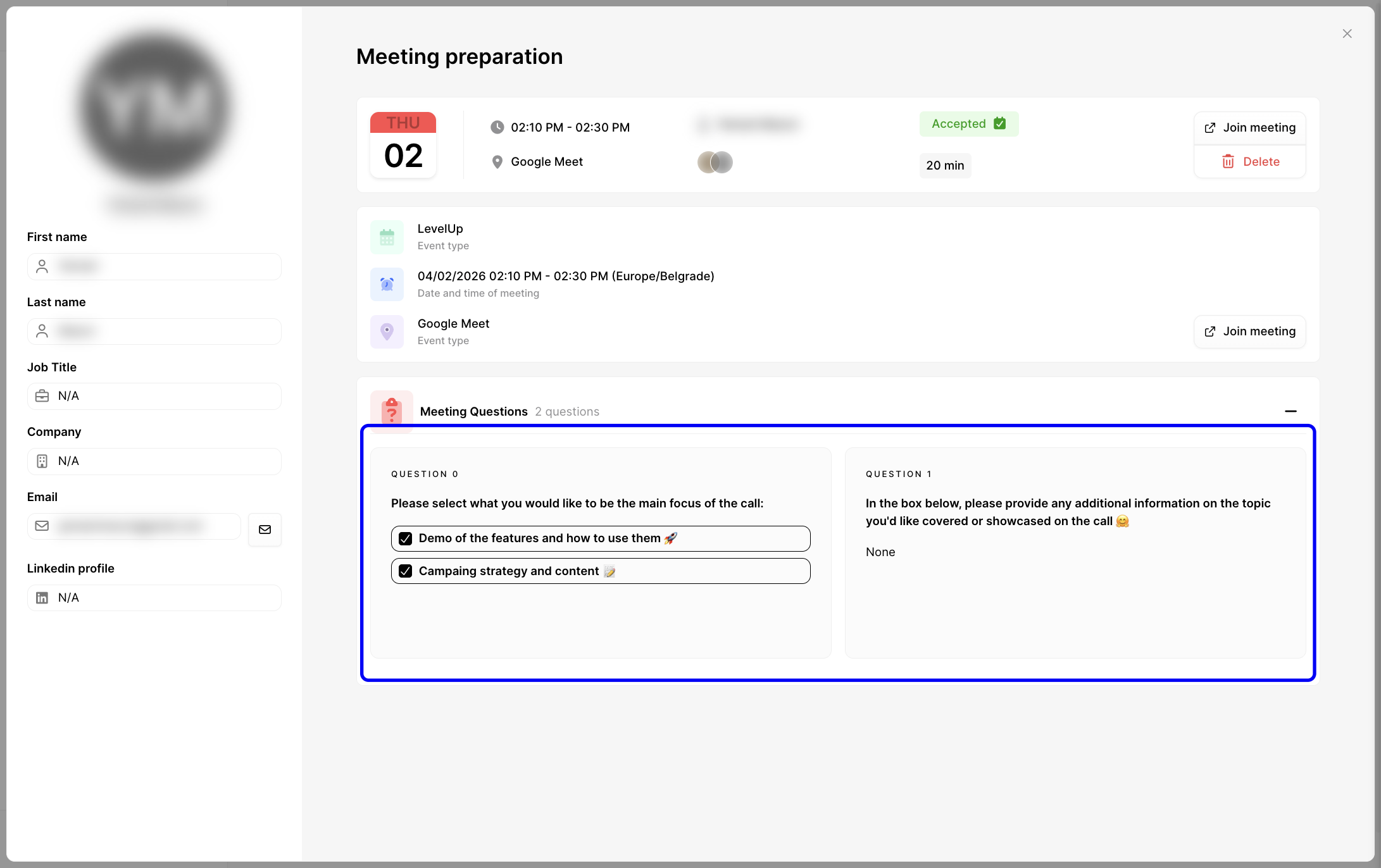
5. Read the answers to booking questions. In the Meeting Questions section, you can review any answers the attendee submitted while booking. This is especially helpful for understanding goals, use cases, or extra notes before a follow-up conversation.
6. Join the meeting from the record if needed. Click Join meeting to open the meeting link directly from the meeting details view.

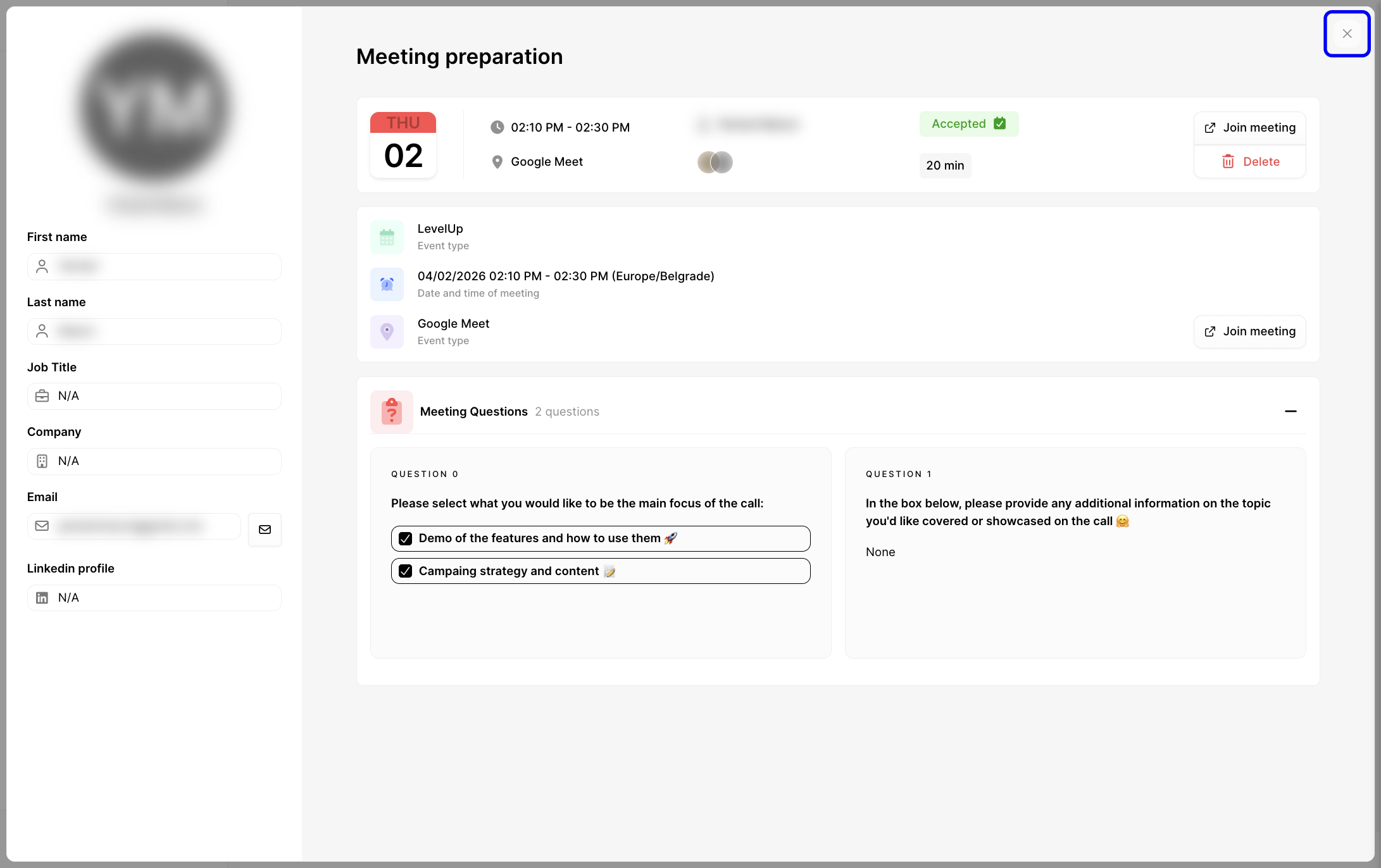
7. Close the meeting record. When you’re done reviewing the details, click the X in the top-right corner to return to the Scheduled meetings list.
Switch to Past meetings. Click the Past tab to display meetings that have already happened. This lets you quickly find completed calls and reopen them for review.

In the Past tab, you can open any listed meeting to view the full meeting details, attendee information, booking question answers, and the meeting link, just like in the steps above.
Switch to Canceled meetings. Click the Canceled tab to review meetings that were canceled. This is useful when you need historical context or want to identify meetings that may need rescheduling.

The list updates to show only canceled meetings, grouped by month in the same way as your other meeting views.

A common workflow is to open the Past tab after a sales call, review the attendee’s submitted answers, and use that context to send a more relevant follow-up email. You can also use the Canceled tab to spot missed opportunities and decide which contacts should be invited to reschedule.
Issue: You can’t find an older meeting.
Issue: A past meeting doesn’t show answers to booking questions.
Issue: You expected a join link but don’t see one.
Issue: Attendee details look incomplete.


